Gather Here. Go Far.

With locations in Tahlequah, Muskogee and Broken Arrow, NSU is Oklahoma’s immersive learning institution. Choose from in-person, blended or online learning options.

Scholarships

NSU is committed to assisting students in applying and earning scholarships. Whether you are an incoming freshman or a continuing/returning student, NSU has a wide variety of scholarship options for students to choose from.

Clubs and Organizations

From networking to leadership opportunities, NSU’s over 80 clubs and organizations allow our students to build lasting relationships while getting the full college experience.

Transfer Students

Whether you’re an incoming or current transfer student, NSU’s transfer advisors are available to assist you with transcript evaluation, information on degree programs and support services. NSU is where You Belong.

Graduate College

Whether transitioning to graduate school or returning to higher education, NSU’s graduate college is your next step. Choose from over 25 master's degrees and several certificate programs.

Accessibility Resources for Faculty

Discover tools and guide to help make digital content accessible to everyone. Explore best practices and resources for creating inclusive experiences for all users.

Accessibility Training Opportunities

Blackboard-Native Accessibility Essentials

Stop guessing how to improve accessibility in your course materials. We will dive into the essentials of heading hierarchies, alt-text, and contrast to make materials cleaner and easier to navigate.
Tues., Feb. 17 at 3:00pm
Register for the training (opens in new tab)

Accessible Word Document Essentials

Transform your documents from simple text into inclusive, professional resources that work for every student. Covering the "must-have" skills for Word, you will improve heading structures, alt-text, and descriptive links.
Wed., Feb 18 at 1:30pm
Register for the training (opens in new tab)

Accessible Google Files with Grackle

This session introduces common accessibility issues in Google Docs, Slides, and Sheets, with a focus on identifying and resolving them using Grackle. Participants will learn how to run accessibility checks, interpret results, and apply recommended fixes within Google Workspace. The training is designed to help faculty create accessible content quickly without disrupting existing workflows.
Fri., Feb. 20 at 2:00pm
Register for the training (opens in new tab)

Accessible PowerPoint Slide Essentials

This training covers the most common accessibility problems found in PowerPoint presentations and how to fix them efficiently. Participants will learn reading order, color contrast, and alt text.
Wed., Feb. 25 at 1:00pm
Register for the training (opens in new tab)

Accessible PDF Essentials

This training explains frequent accessibility barriers found in PDFs, including tagging, reading order, and scanned documents. The session also highlights practical strategies and tools for improving PDF accessibility or deciding when to use alternative file formats.
Fri., Feb. 27 at 2:00pm
Register for the training (opens in new tab)

Understanding Closed Captioning and Audio Descriptions

This session demystifies the closed captioning process from lecture capture in Zoom to final review. Participants will learn the difference between auto-generated and human-edited captions as well as the importance of audio descriptions. The training also discusses how they support a wide range of learners.
Wed., Mar. 4, 2026 at 2:00pm
Register for the training (opens in new tab)

Respondus for Exam Integrity

This training provides an overview of setting up Respondus while considering student support. Participants will explore common configuration options and strategies for familiarizing students with the Lockdown Browser prior to a high-stakes assignment.
Wed., Mar. 11, 2026 at 1:30pm
Register for the training (opens in new tab)

Exploring ReadSpeaker and Other Alternative Formats

This session introduces ReadSpeaker and other tools available in Blackboard and how they enhance students' ability to consume your course materials. Participants will learn what these tools do, how students access and customize them, and when they can be most beneficial for learning.
Wed., Mar. 25, 2026 at 2:00pm
Register for the training (opens in new tab)

Blackboard (Anthology Ally)

Instructor Feedback (Blackboard Learn)

Instructor Feedback for WYSIWYG Content

Overview for Instructors of Ally for LMS Blackboard

Instructor Feedback (Blackboard Learn Mobile App)

Using Ally to Identify Issues

Ally is built into Blackboard to help faculty identify and, in some cases, resolve accessibility issues in their course materials.

Since a person with a student role in a Blackboard course cannot see the Accessibility features, they are not displayed for you here, but you have likely already seen them in a course where you are the instructor. Feel free at any time to go to a course of yours to see these features live. Just be mindful of any changes you make in a LIVE course.

There are two ways to view accessibility information for your course files: both are in instructor view and on the Content tab.

Viewing an Individual Item

To view the accessibility of an individual item within a course, in the Content Area listing, note that to the right of the title of your files, there are Accessibility score indicators, seen in the image below inside red boxes.
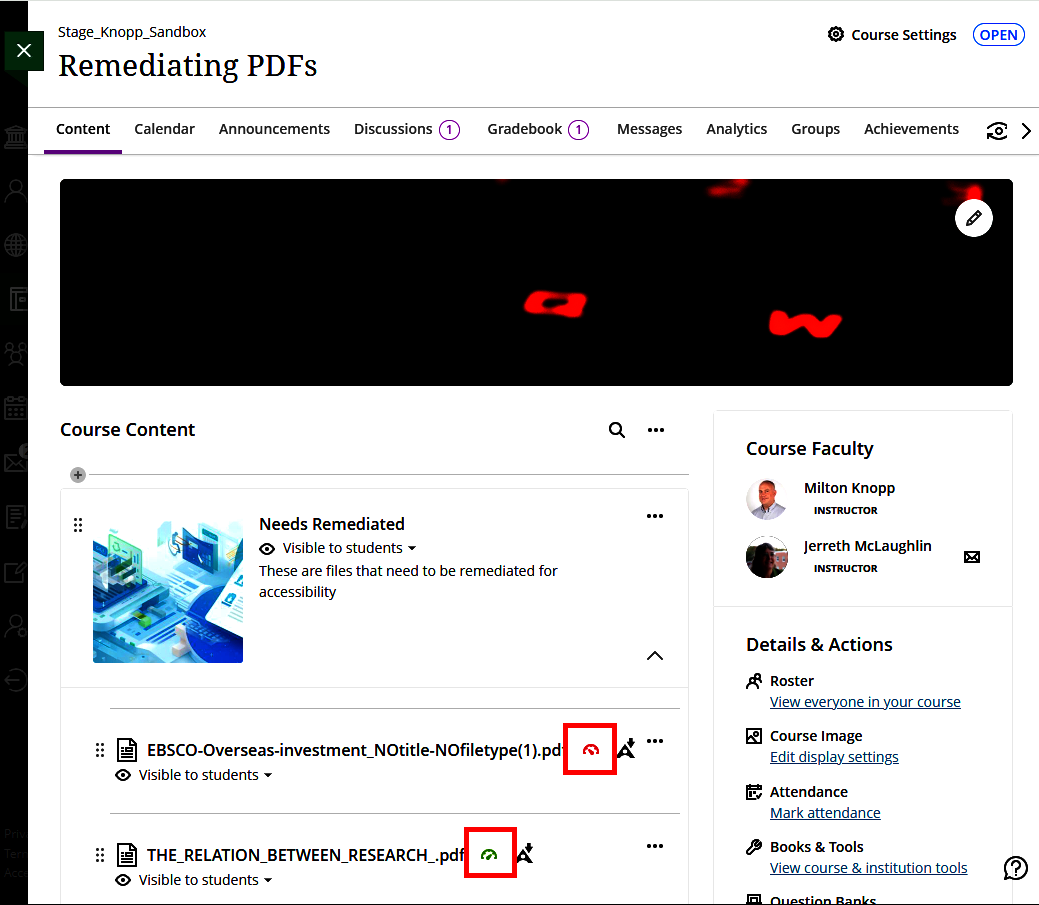
Under a folder labeled “Needs Remediated,” two PDF files are listed. One file shows a red accessibility indicator icon, signaling accessibility issues, while the other shows a green icon, indicating improved or acceptable accessibility status. Course faculty names are displayed in a panel on the right.

The color of the Accessibility score indicators displays the number and severity of issues in a document. See more in the Accessibility Scores article on Blackboard Help Center

Clicking on the gauge icon displays a panel on the right side of your screen. This panel provides current information about the file and gives information and options about how to fix any issues.
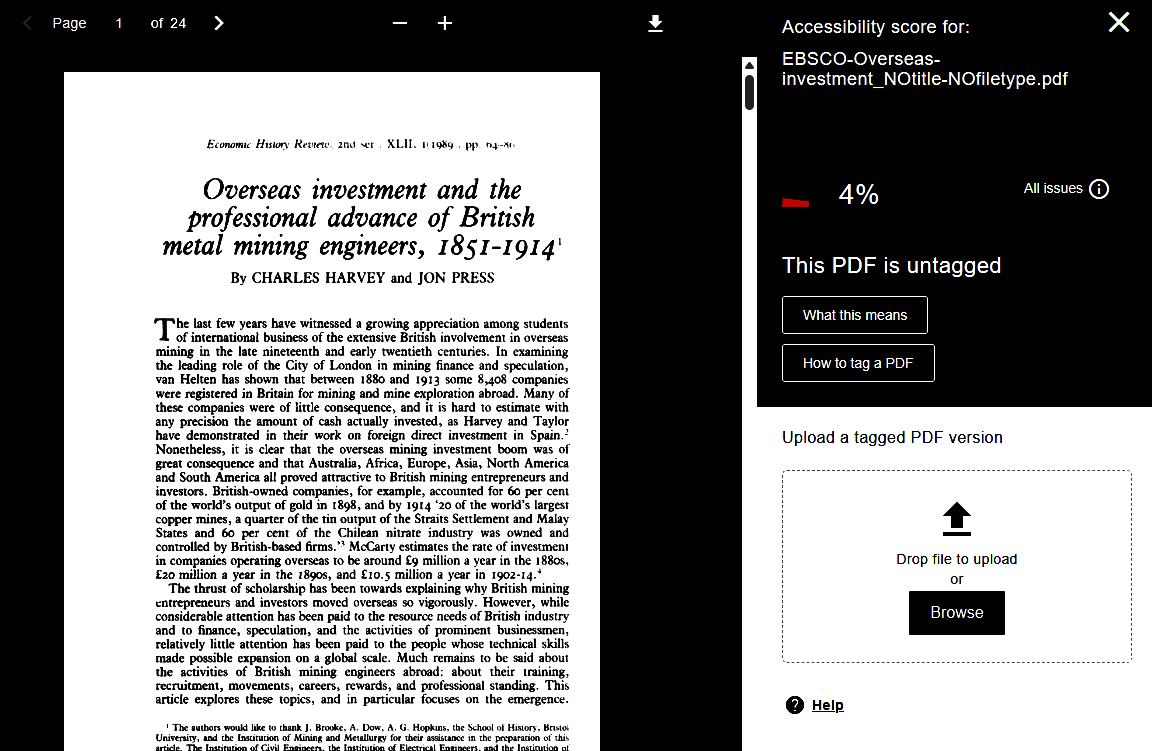
On the right side, an accessibility panel shows an accessibility score of 4% and states that the PDF is untagged. Buttons are visible for learning what this means, how to tag a PDF, and uploading a tagged version of the document.

You can find more information in the Blackboard's Ally Quick Start for Instructors.

Course Accessibility Report (Viewing All Items)

To view the accessibility of every item, do the following. Along the right side of your screen, you will see a Details and Actions list. Under the Books & Tools heading, click on the View Course & Institution tools link. On the pane that appears, select Accessibility Report. Both steps are outlined in red in the image below.
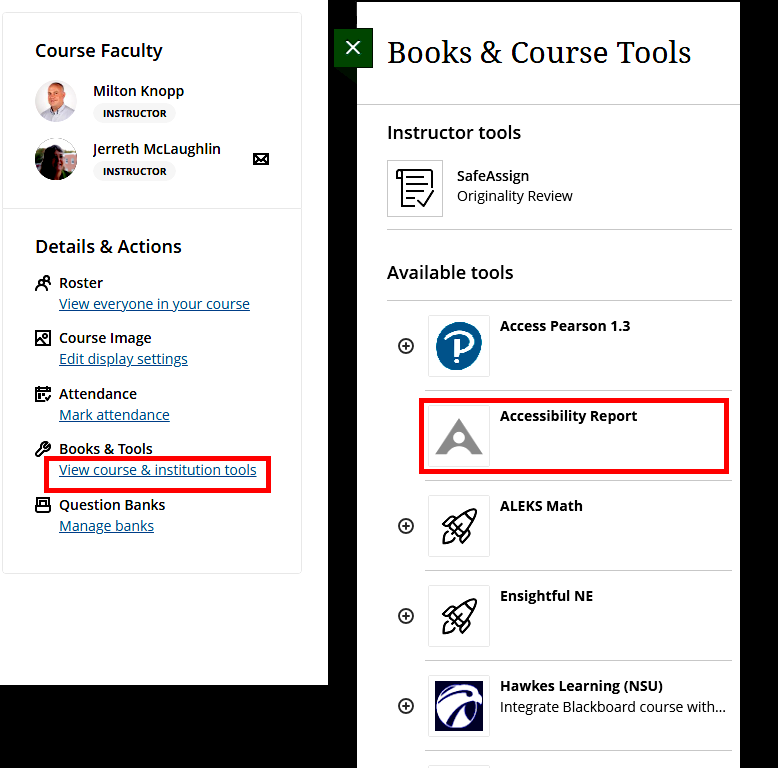
Screenshot showing the Blackboard Books & Course Tools menu. The option “Accessibility Report” is highlighted among available tools. The menu is accessed from the course settings area, which also includes links to roster, attendance, and course image settings.

This is a more comprehensive view. You can see all your files. The image below cover.
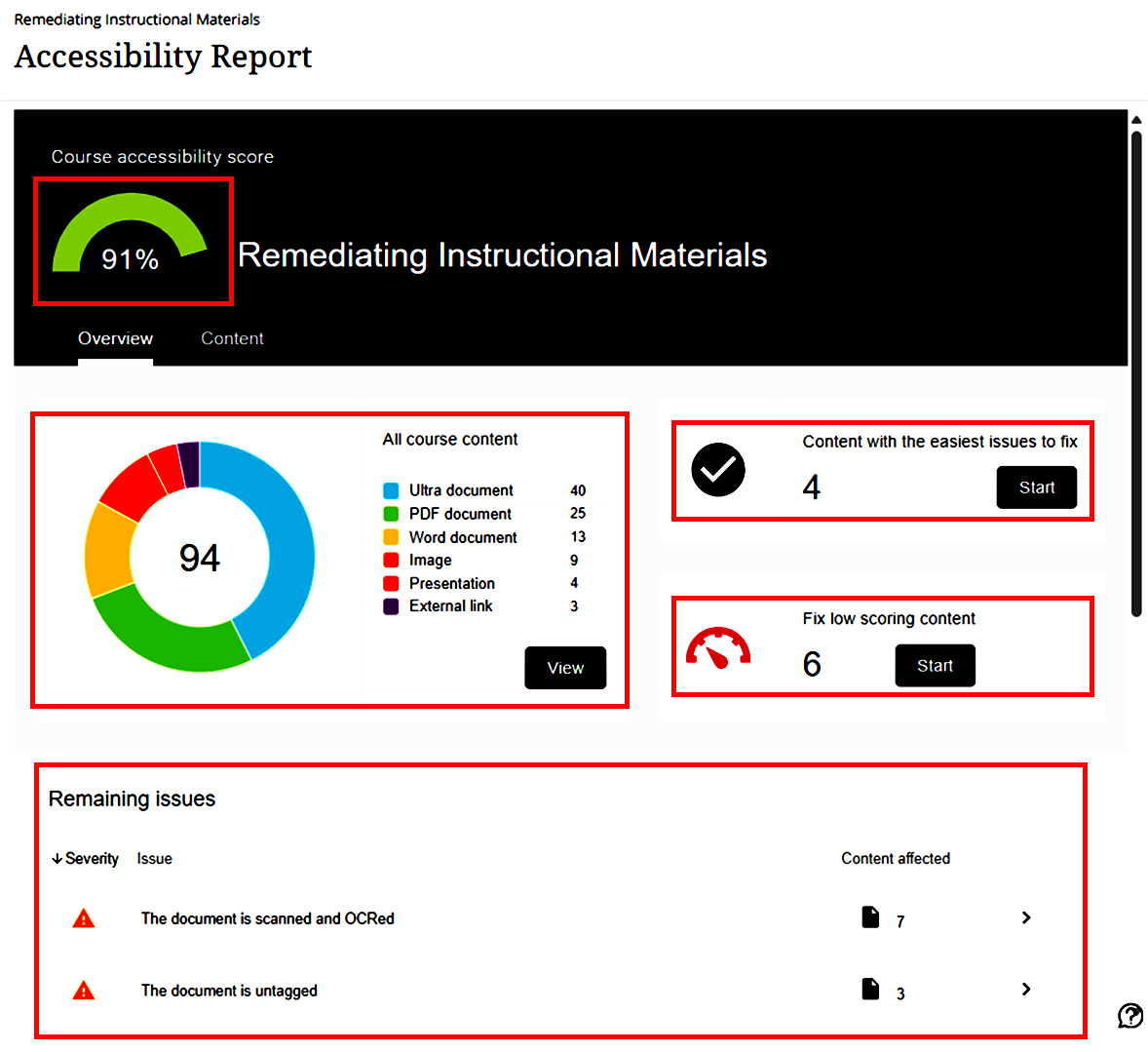
Screenshot of an Accessibility Report dashboard titled “Remediating Instructional Materials.” A large gauge shows a course accessibility score of 91%. A chart displays a total of 94 content items, including Ultra documents, PDFs, Word documents, images, presentations, and external links. Panels on the right indicate 4 items with the easiest issues to fix and 6 low-scoring content items. A section labeled “Remaining issues” lists warnings for scanned and untagged documents.

There are different parts of the overview. In the top left, we see the rate of accessibility for the whole course. In this case, it is 91%. Below that, we see the breakdown of what types of files are in this course. In this example, we see that Ally has identified a total of 94 documents in the course, found in the middle of the pie graph. Most of these files have no accessibility issues. The document type that appears most often in this course is the Ultra-native documents (authored directly in the LMS). There are 40 such documents.

To the right of that, we see, on the top high-scoring content we can fix. These would include items close or very close to being fully accessible. If you are new to remediating, or fixing, documents, these files would be a good place to start learning how to fix documents that should require only a minimum amount of work.

Below that are the documents with major issues; these documents are furthest from being accessible and often require more work than other documents, yet they are the ones with the biggest payoff once fixed.

Finally, towards the bottom of the page are the first two entries of a list of items that need to be fixed.

Compare to one of your courses

Resolving Issues in Ally for Blackboard


Installing and Using Grackle for Accessibility

Grackle can help ensure inclusivity and compliance within Google Docs, Google Slides, and Google Sheets. NSU Online - Faculty has created a video to help with installing and using Grackle at NSU.

Americans with Disabilities Act (ADA) Compliance
Tip of the Week

Communications & Marketing share tips of the week to assist with compliance. 

Learn More on Communication & Marketing's Website

Minute Wins

NSU Online - Faculty has developed videos which are part of a new training series of short videos, which are about a minute long: